
AWS CLI Installation & Configuration
AWS CLI Installation & Configuration
Installation:-
To play with AWS with command line, you need to install aws cli on your machine so following
are the steps/commands to install on linux (ubuntu)
Installing AWS CLI at Ubuntu:-
sudo apt-get update
sudo apt-get install awscli
Installing AWS CLI at CentOS 9/8:-
sudo dnf install awscli
aws –version
Configure AWS on the server:-
Type the following command on your machine terminal
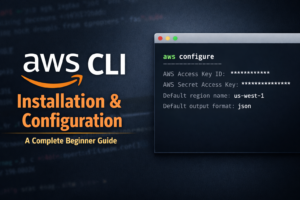
aws configure
Above command will need following information
AWS Access Key ID [None]: Paste here your actual key id
AWS Secret Access Key [None]: Paste here your actual access key
Default region name [None]: us-west-1
Default output format [None]: json
After AWS configuration the aws commands will work.
Reset AWS Credentials:-
just remove ~/.aws/credentials along with ~/.aws/config
rm -rf ~/.aws/credentials
rm -rf ~/.aws/config
Some AWS Commands:-
For moving file to S3:-
aws s3 mv mysite-dev.tar.gz s3://xl-john/
For listing files in S3 bucket:-
aws s3 ls s3://xl-john/
aws s3 ls s3://xl-john –recursive –human-readable –summarize (For detailed view)For removing file from AWS S3:-
aws s3 rm s3://xl-john/mysite-dev.tar.gz
Download from AWS S3:-
aws s3 cp s3://xl-john/mysite-dev.tar.gz /var/www/mysite-dev.tar.gz
List all buckets:-
aws s3api list-buckets –query “Buckets[].Name”